
Build your own Jarvis in a weekend
Nine steps to an AI assistant that knows your business, uses your tools and talks back. The exact setup I run on Claude Code, with every prompt.
On this page
What this is
Hey, I’m Jayson. I co-founded HeyBrain, and I run most of my week through a personal AI assistant: a Jarvis that knows my business, uses my tools and talks back.
This is the full weekend setup from the video. Steps 1 to 4 cost nothing extra. Step 5 is the memory, and that’s where HeyBrain comes in. It has a 14-day free trial if you want to build yours on the same brain as mine.
The nine steps

- Give it a home. A machine that stays on.
- Install an agent harness. Claude Code turns the model into an agent.
- Choose the model. A strong one for thinking, a fast one for quick jobs.
- Teach it who you are. A one-page brief it reads every session.
- Give it a memory. Your docs and decisions, one brain away.
- Add skills. How you like each job done.
- Connect your tools. Email, calendar, documents, the browser.
- Add channels and a voice. Message it from your phone, talk to it out loud.
- Build the Jarvis interface. A mission-control screen, purely for the feel.
What you need
Step 1: Give it a home
Your Jarvis needs a machine that stays on, so it can run jobs while you sleep and answer when you message it. Pick one:
| Option | Good for | Watch out for |
|---|---|---|
| An old laptop | Free, and fine to start with | Turn off sleep and keep it plugged in |
| A Mac mini | Quiet, always on, runs everything | The upfront cost |
| A small cloud server | Reachable from anywhere | A monthly bill, and you manage it from a terminal |
Start with whatever you already own. You can move it later; the rest of the setup is the same.
Step 2: Install an agent harness
A model on its own just answers. A harness turns it into an agent that can read files, run commands and use tools. Claude Code, Codex and Gemini CLI are the main ones. I use Claude Code, and the rest of this guide assumes it.
- Install Claude Code by following Anthropic’s setup guide.
- Make a folder for your Jarvis, open a terminal in it and run
claude. - Sign in with your Claude account when it asks.
Say hello
Open in ClaudeYou're going to become my personal assistant. Before we start, tell me what you can do from this folder, and what you'd need from me to help run my business.
Step 3: Choose the model
Claude Code switches models with the /model command. I run Fable 5.2 for the heavy work: planning, writing, anything that needs judgement. I switch to Haiku for quick jobs like checking a calendar or tidying files, because it’s fast and efficient.
Step 4: Teach it who you are
Claude Code reads a file called CLAUDE.md at the start of every session. Think of it as your Jarvis’s brief: who you are, what you sell, how you like things done. Let Claude interview you and write it.
Write your Jarvis brief
Open in ClaudeInterview me to write a CLAUDE.md file for this folder. You're going to be my personal assistant, so you need to know my business. Ask one question at a time and wait for my answer before the next. Cover: who I am and my role, what my business sells and to whom, my main goals this quarter, the tools I use every day, how I like answers written, what you must never do without asking me, and the recurring jobs I want help with. When we're done, write CLAUDE.md in this folder. Keep it under one page, in short bullet points.
Step 5: Give it a memory
This is the step that makes it feel like Jarvis. Without a memory, every session starts from zero and you explain your business again. CLAUDE.md helps, but it’s one page you keep up to date by hand.
I connect mine to HeyBrain. It turns my Google Drive and Notion into one knowledge graph, so my Jarvis can look up any doc, decision or project before it answers, and it only pulls the pieces it needs for the job. Because the brain sits outside Claude, the same memory works in Claude, Cursor and Codex, and my team’s agents read from it too.

- Start your 14-day free trial and create your workspace.
- Connect Google Drive or Notion so HeyBrain can build your knowledge graph.
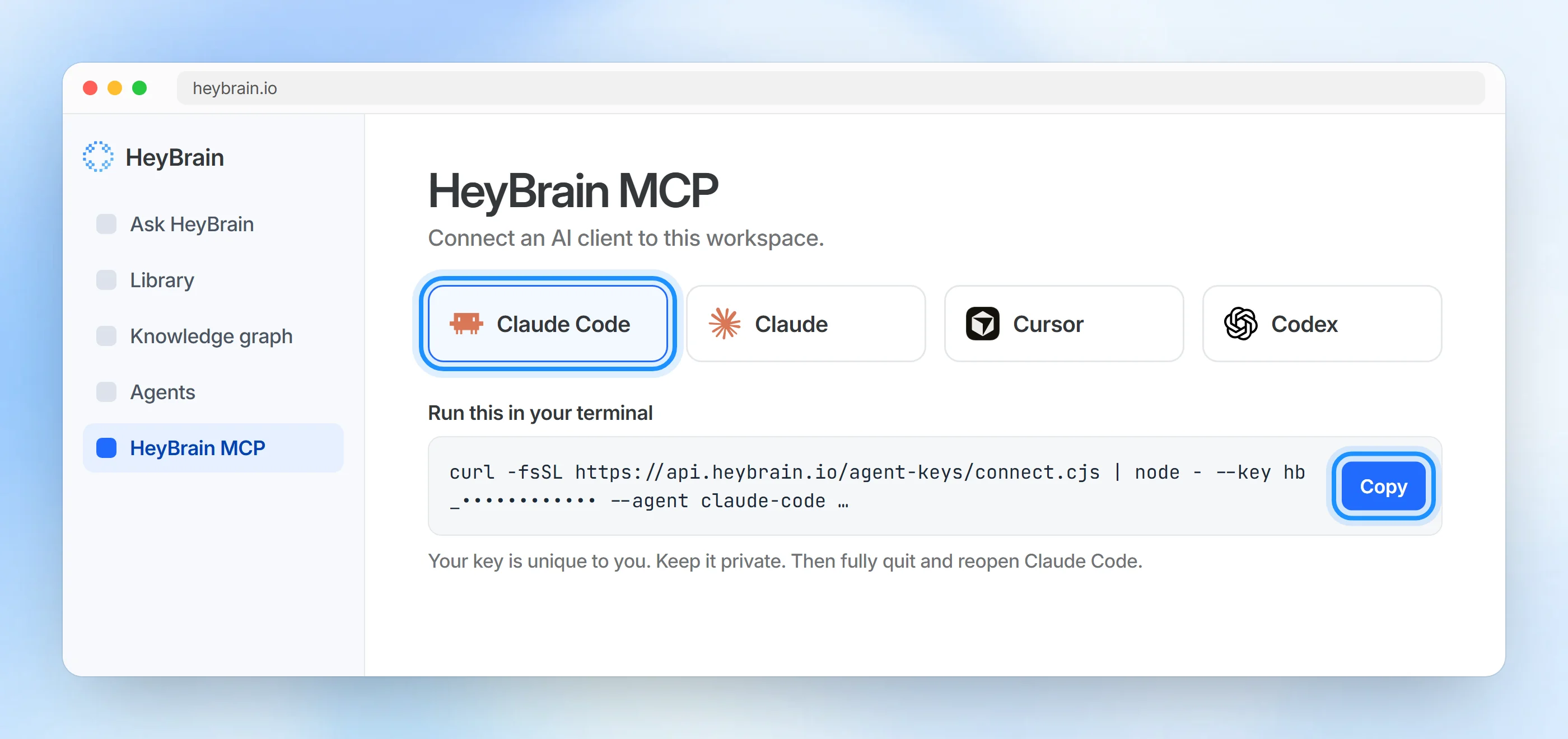
- In HeyBrain, open HeyBrain MCP, choose Claude Code and follow the steps it shows: generate a session key if it asks for one, then copy the command.
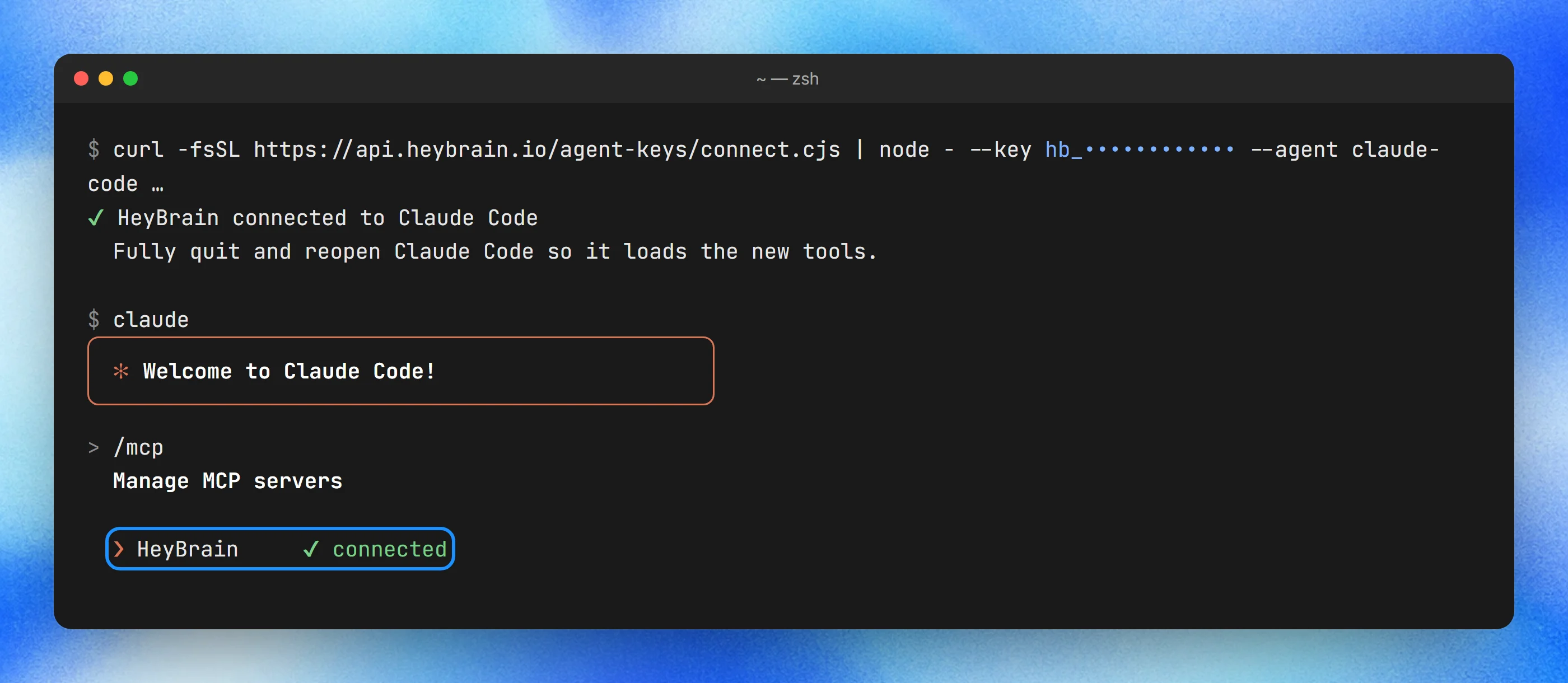
- Run the command in your terminal, then fully quit and reopen Claude Code. If /mcp shows HeyBrain (listed as aivm-brain) needs authentication, select it, choose Authenticate and approve access.
Using the Claude app as well?
In HeyBrain, open HeyBrain MCP, choose Claude Desktop and copy your MCP URL. It’s your workspace’s endpoint, so don’t post it anywhere public.
In Claude, open Customize → Connectors, select Add, then Add custom connector. Name it HeyBrain, paste the URL, click Continue, then Add. Click Connect and approve access when HeyBrain asks, then switch HeyBrain on from the + menu in a chat. On a Team or Enterprise plan, an Owner adds the connector first.
Check your Jarvis can see the brain:
Check the memory
Open in ClaudeUse HeyBrain to tell me what you know about my business. List the five most recent documents, and one decision or open question from each.
Step 6: Add skills
Skills teach your Jarvis how to do a specific job the way you like it: write a client update, prep you for a sales call, turn a voice note into tasks. Each skill is a short instruction file that Claude loads only when that job comes up.
Turn a job into a skill
Open in ClaudeI want a skill for [a job I do every week]. Ask me how I do it today, step by step, what good looks like, and the mistakes to avoid. Then write it as a Claude skill: a folder with a SKILL.md file containing a name, a one-line description of when to use it, and the steps. Save it in .claude/skills in this folder.
Start with the three jobs that eat most of your week. Add more whenever you catch yourself giving the same instructions twice.
Step 7: Connect your tools
Tools are what let your Jarvis act, not just talk. They connect over MCP, the same standard HeyBrain uses.
| Tool | What your Jarvis can do with it |
|---|---|
| Gmail | Read your inbox, draft replies, pull out tasks |
| Google Calendar | Check your week, find times, prep you for meetings |
| Your documents | Read and write files in Drive or Notion |
| Your browser (Claude in Chrome) | Open dashboards, pull numbers, fill in forms you approve |
In Claude Code, add a tool with claude mcp add. In the Claude app, use Customize → Connectors.
Step 8: Add channels and a voice
Now make it reachable. Connect it to the places you already talk, like Slack, Telegram or iMessage, so you can message your Jarvis from your phone.
Then give it a voice. Talk to it with Claude’s voice mode, or use Wispr Flow to dictate anywhere on your computer. For the full Iron Man effect, have it talk back: ElevenLabs turns its replies into speech, in a voice you choose.
Step 9: Build the Jarvis interface
Purely for the Jarvis feel: a mission-control screen that shows what your agents are doing. Give Claude a reference image of the look you want and this prompt, then keep refining it in Claude Code.
Build mission control
Open in ClaudeBuild me a single-page mission-control dashboard for my personal AI assistant, Jarvis. Dark interface, clean typography, subtle motion. Sections: a morning briefing at the top, today's calendar, emails waiting for a reply, my key business numbers with small trend lines, the tasks my agents are working on with their status, and a voice button to talk to Jarvis. Use placeholder data for now and make every section easy to wire up to real data later. Match the style of the reference image I've attached.
Hook your voice setup from step 8 up to the voice button, and you can talk to your agent like Tony Stark talks to his.
Bonus: the three agents behind mine
Once the nine steps are done, this is how I split the work. Three agents, one memory.

The Scout
Gathers what’s happening across the business and writes my morning briefing. It uses MCP connectors for revenue and ad spend, and Claude in Chrome to pull numbers from the dashboards you already sign in to.
Scout: morning briefing
Open in ClaudeRead my goals and context from HeyBrain first. Then check [list your sources] and write my morning briefing: - the three numbers that moved most since yesterday, and why - anything that needs my attention today - one thing that's going well Keep it under 200 words.
The Operator
Handles the repeatable work. It drafts replies to routine customer emails from a FAQ file, queues social posts, and hands anything that needs real work to a sub-agent with its own skills, like a developer agent.
Operator: inbox pass
Open in ClaudeGo through my inbox from the last 24 hours. Draft replies to routine customer questions using our FAQ, list anything that needs me in one line each, and pull out tasks with their due dates. Don't send anything. Leave every draft for me to approve.
The Advisor
Reads what the Scout found and what the Operator handled, and tells me what to focus on: a PR that’s blocking a release, an ad angle that’s pulling ahead.
Advisor: weekly focus
Open in ClaudeRead this week's briefings and the Operator's notes. Tell me the three things I should focus on next week, ranked, with the evidence for each. Flag anything that's getting worse.
Run the Scout and the Advisor on a schedule with Claude Code scheduled tasks (/schedule), so the briefing is waiting for you every morning.
Why the memory step matters
Questions people ask
Do I need to know how to code?
No. You’ll paste a few commands into a terminal and let Claude write the rest. If you can follow a recipe, you can follow this.
What does it cost?
Claude Code runs on paid Claude plans. HeyBrain has a 14-day free trial with a card required. ElevenLabs and Wispr Flow both let you try voice before you pay.
Can I use Codex or Gemini CLI instead of Claude Code?
Yes for most steps. HeyBrain connects to Claude, Cursor and Codex today, so step 5 works with Claude Code or Codex.
Will it send emails or post on its own?
Only if you let it. Start with drafts and approve everything until you trust what it writes.
Is my data used to train models?
No. HeyBrain doesn’t train any model on the content you connect.
Why HeyBrain and not just CLAUDE.md?
CLAUDE.md is one page you keep up to date by hand. HeyBrain reads your actual docs from Google Drive and Notion, stays current as they change, and works for every agent and teammate you connect.

