
Give Claude a memory of your business
Why Claude forgets you between chats, the free fixes that help, and how I give it a memory that reads my Google Drive and Notion. Every prompt included.
On this page
What this is
If you came from one of my videos, this is the setup I promised. Claude is brilliant, but every new chat starts from zero. You explain your business, your clients and how you like things done, again and again, and you pay for it in time and tokens.
Below are the free fixes that help, and where they stop. Then the setup I use: Claude connected to HeyBrain, which reads my Google Drive and Notion so Claude starts every chat already knowing my work. HeyBrain has a 14-day free trial. Full disclosure: I co-founded it.
Why Claude forgets you
Each conversation with Claude has a context window: everything Claude can see right now, meaning your messages, the files you add and its own replies. Open a new chat and that window starts empty.
So you rebuild it. You paste the same brief, upload the same docs again, or let Claude Code re-read your files. Every time, that costs tokens. On a long session the window fills up, and the details from the start begin to slip.

The free fixes
Do these first. They cost nothing, and they make the HeyBrain step work better too.
Step 1: Turn on Claude’s memory
Claude can remember context from your past chats. Open Settings → Your Claude (or Settings → Memory in the older layout) and check Generate memory from chats is on. It’s on by default on Free, Pro, Max and Ultra; on Team and Enterprise, your owner decides. Then tell Claude the basics once.
Brief Claude once
Open in ClaudeHere’s who I am, so you don’t have to ask again. My role: [your role] My business: [what you sell, and to whom] My tools: [the apps you use every day] How I like answers: [for example, short, in bullet points, UK English] Remember this for future chats.
Step 2: Put your key docs in a Project
A Project in Claude is a workspace with its own instructions and files, and every chat inside it can see them. Make one for each big area of your work.
- In Claude, open Projects and create one, for example Clients or Marketing.
- Add project instructions: who it’s for and how you want answers written.
- Upload the five to ten docs you’d otherwise paste in: your offer, pricing, brand voice and FAQs.
- Start every related chat inside that Project.
Step 3: Brief Claude Code with CLAUDE.md
Claude Code reads a file called CLAUDE.md at the start of every session. Think of it as the one page it should always know. Let Claude interview you and write it.
Write my CLAUDE.md
Open in ClaudeInterview me to write a CLAUDE.md file for this folder. Ask one question at a time and wait for my answer. Cover: who I am, what my business does, my goals this quarter, the tools I use, how I like work done, and what you must never do without asking. When we’re done, write CLAUDE.md here. Keep it under one page.
Keep it short. Claude Code reads the whole file every session, so a long CLAUDE.md costs tokens on every run.
Step 4: End each session with notes
This is the habit that stops decisions getting lost. Before you close a long chat, ask Claude to write up what happened. Save it somewhere you’ll find it again, like a Claude notes doc in Google Drive or a page in Notion.
Session notes
Open in ClaudeBefore we finish, write session notes I can save. Use these headings: What we worked on, Decisions (with the reason), Open questions, Next steps. Keep it short and specific, with the names, numbers and dates from this chat.
Step 5: Give Claude your brain with HeyBrain
HeyBrain turns your Google Drive and Notion into one knowledge graph and connects it to Claude over MCP. When you ask something, Claude looks up the pieces that matter and pulls in only those, instead of re-reading everything. Because the memory lives outside Claude, the same brain works in the Claude app, Claude Code, Cursor and Codex.

Set up HeyBrain
- Start your 14-day free trial and create your workspace.
- Connect Google Drive, Notion or both, and choose what HeyBrain can read.
- Let it finish reading. Your docs appear in your HeyBrain library as they’re added.
Connect the Claude app
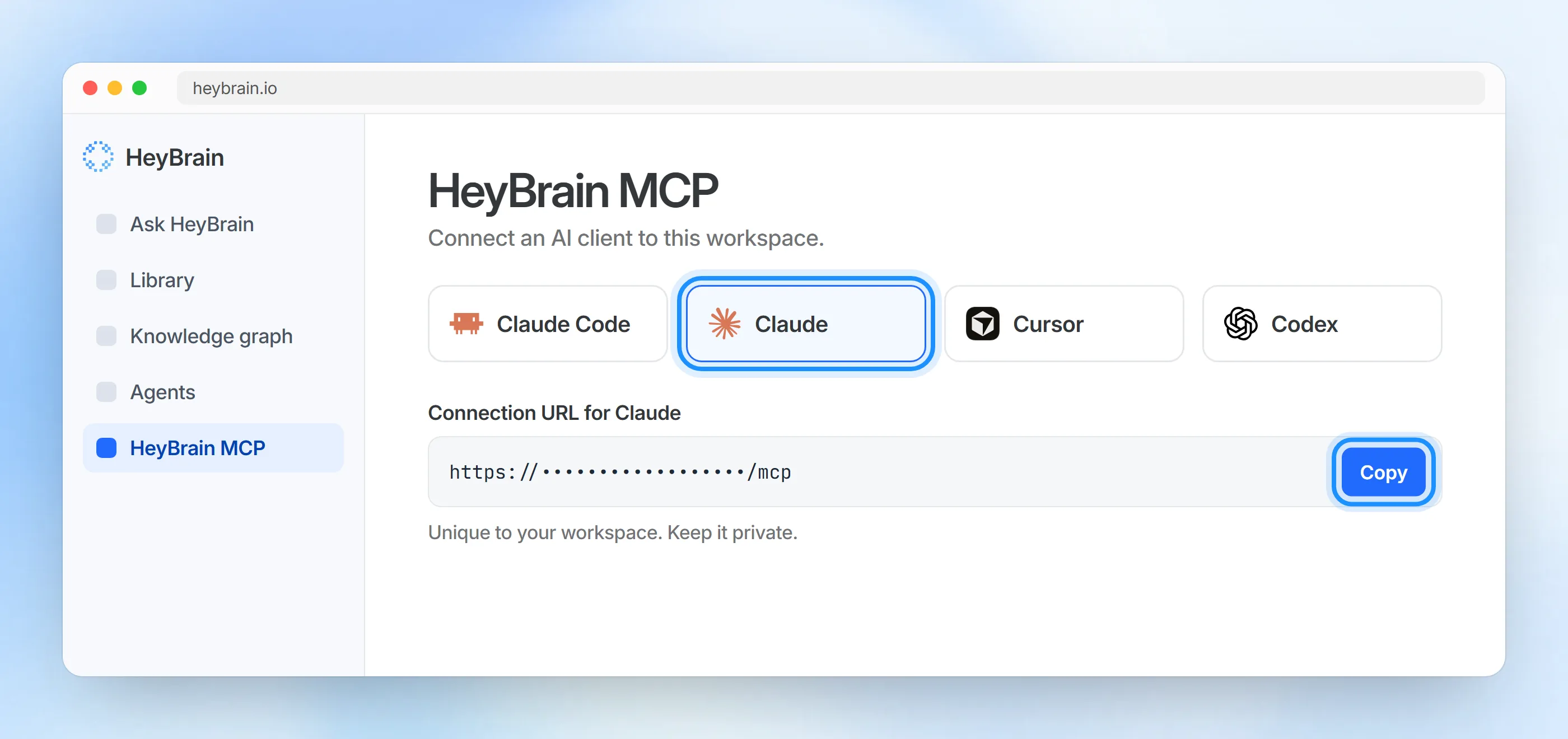
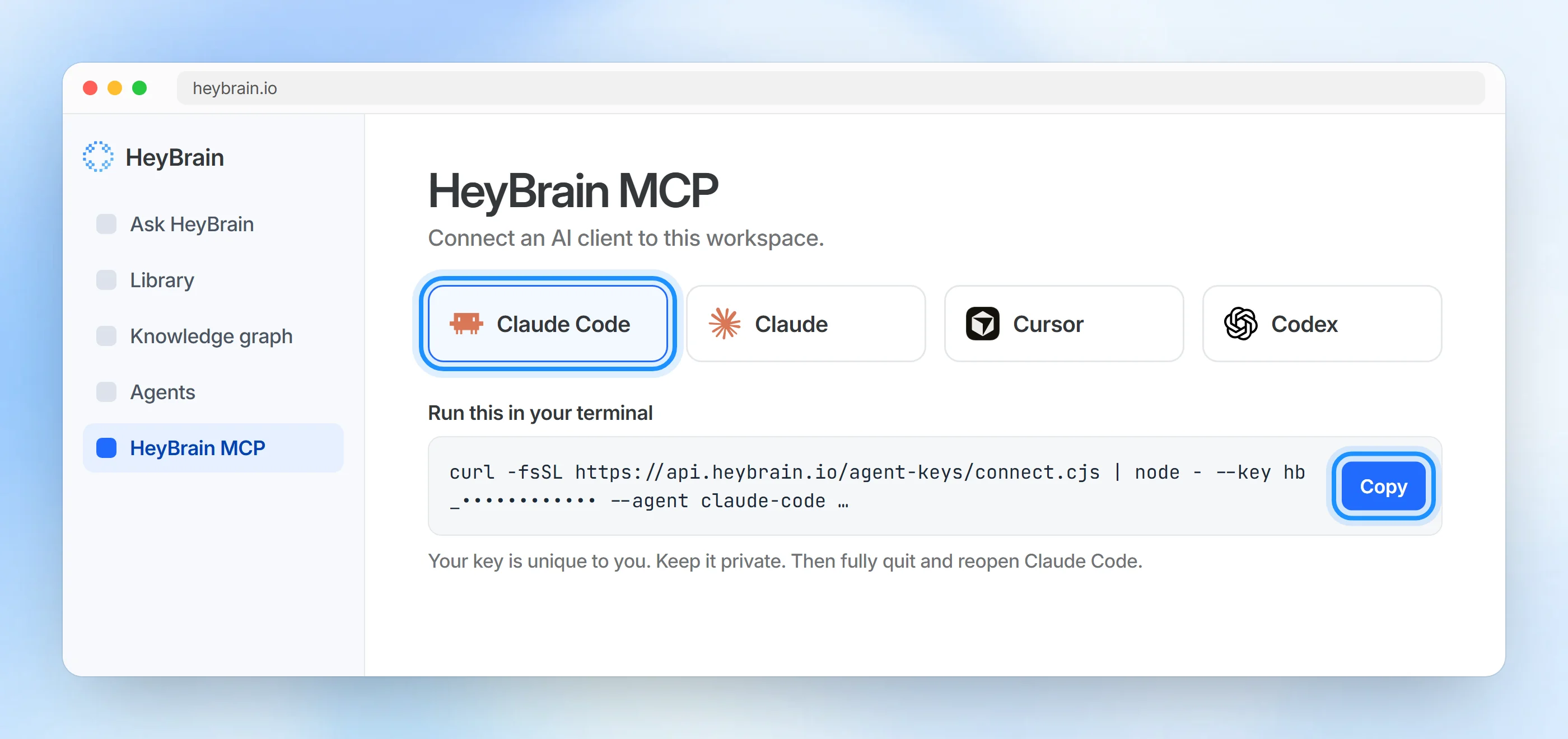
1. In HeyBrain, open HeyBrain MCP, choose Claude and copy your connection URL. It’s unique to your workspace, so keep it private.
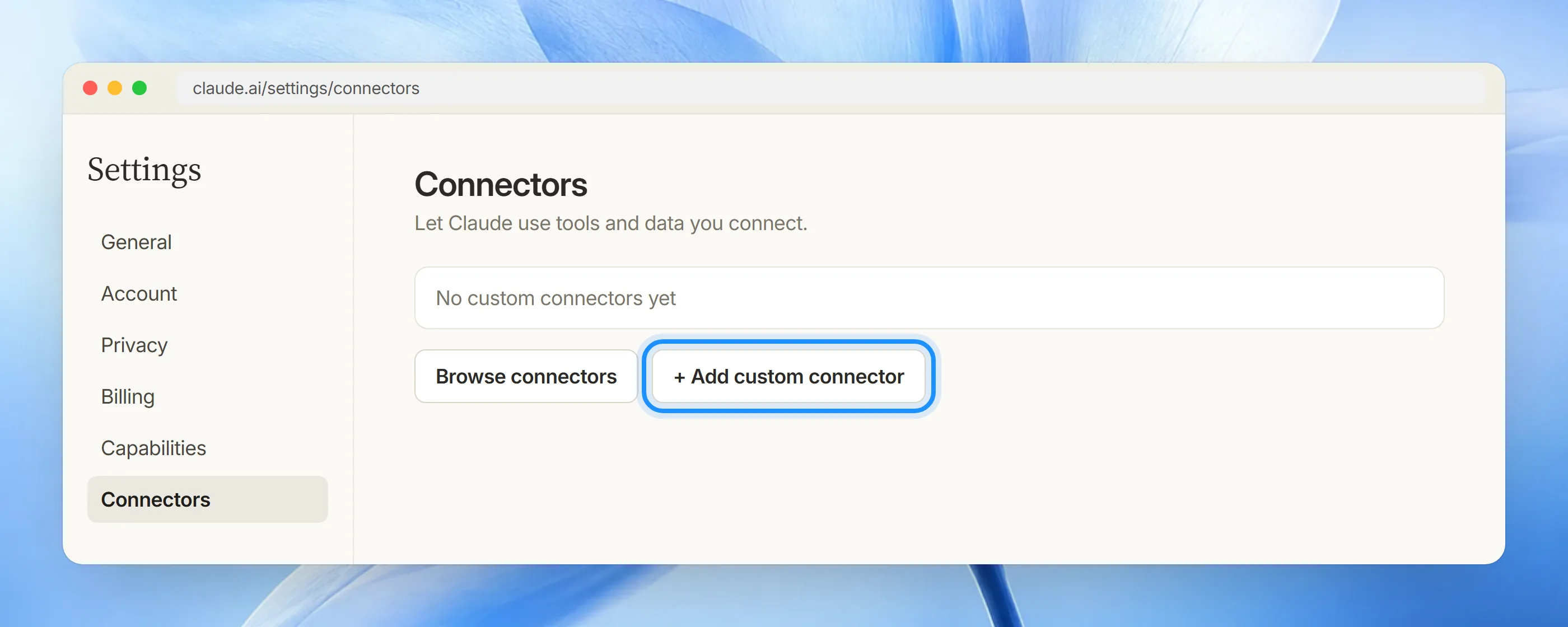
2. In Claude, open Customize → Connectors, click + Add, then Add custom connector.
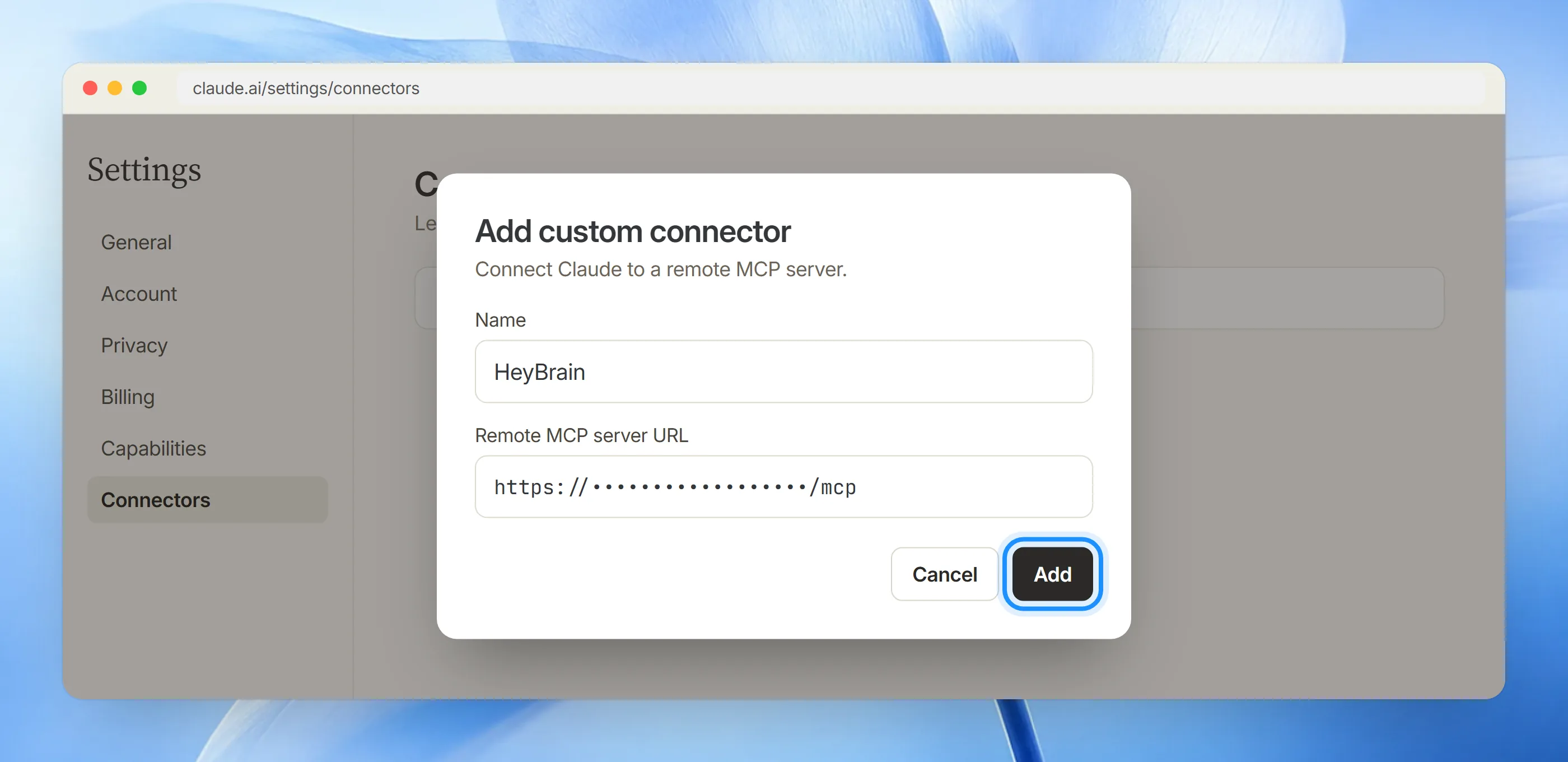
3. Name it HeyBrain, paste the URL, follow the prompts and click Add. Sign in to HeyBrain when it asks, and click Allow.
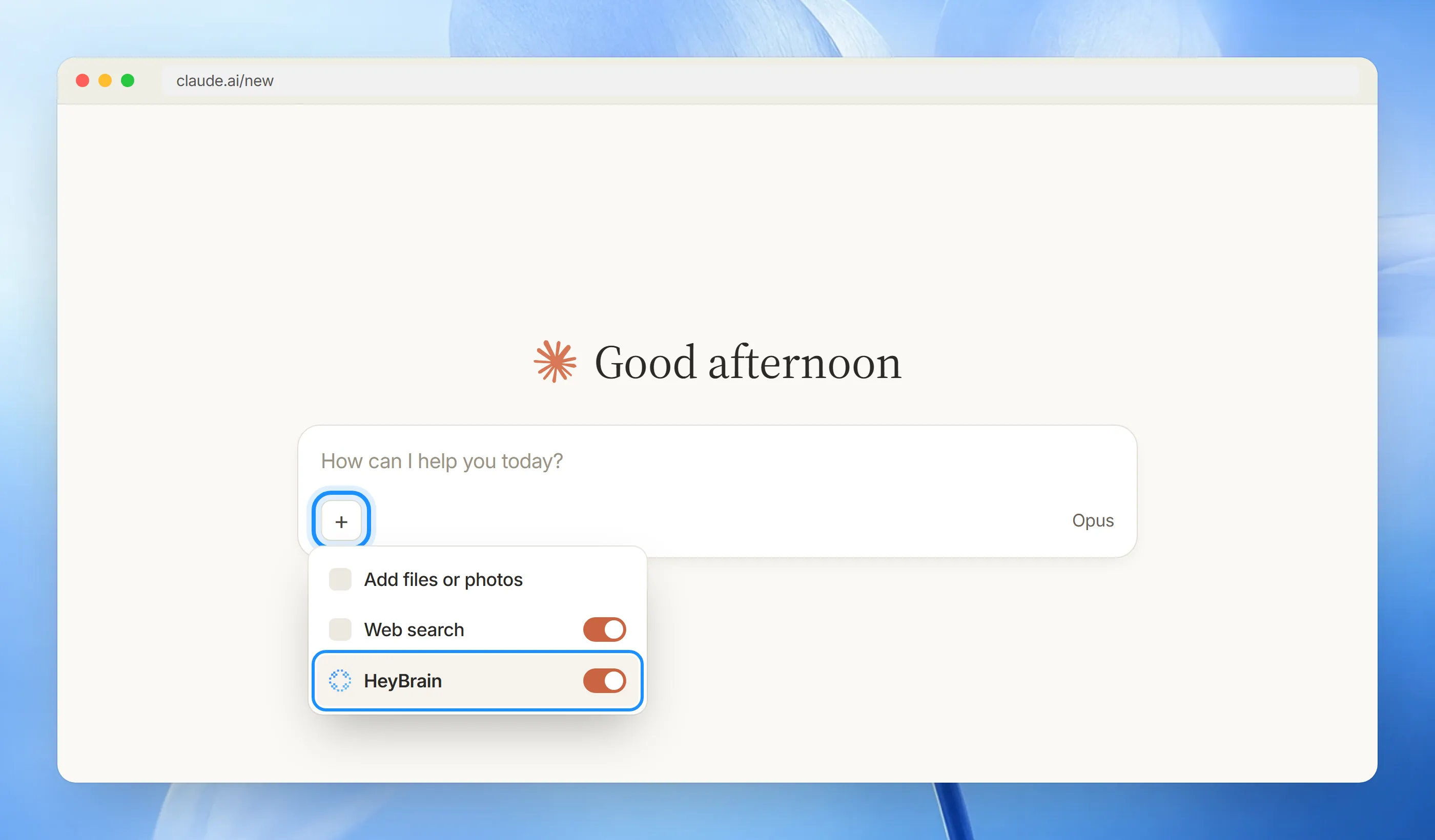
4. In a new chat, click the + at the bottom left, open Connectors and switch HeyBrain on.
Using Claude Code?
In HeyBrain, open HeyBrain MCP, choose Claude Code and copy the command it shows you. It carries your own key, so keep it private.
Paste it into your terminal and run it. Then fully quit and reopen Claude Code so it loads the new tools.
Type /mcp in Claude Code. You should see HeyBrain in the list, marked as connected.
Step 6: Put the memory to work
Open a new chat with HeyBrain switched on and try these. Each one used to take me a pile of pasted context.
Check what it knows
Open in ClaudeUse HeyBrain to tell me what you know about my business. List the five most recent documents, and one decision or open question from each.
Answer from my docs
Open in ClaudeUse HeyBrain to answer this from my own docs, and name the documents you used: [your question, for example what do we charge for the starter package?]
Write in my voice
Open in ClaudeUse HeyBrain to find my brand voice notes and two recent pieces I wrote. Then draft [the email or post] in that voice, and tell me which notes you followed.
Brief me before a call
Open in ClaudeUse HeyBrain to brief me for my call with [client or company]. What have we agreed, what’s still open, and what should I ask?
Step 7: Keep it current
HeyBrain keeps reading your Drive and Notion as they change, so the main job is putting things where it can see them. Save your session notes from step 4 into a folder or page HeyBrain is connected to, and next week Claude can find what you decided today.
Why not Obsidian and Graphify?
A lot of people build a Claude Code second brain with Graphify, which turns a folder into a knowledge graph, and Obsidian to look at it. The open-source version is free, it runs on your computer, and it’s clever. It’s a good fit if your notes already live in a local folder and you enjoy tending them.
I moved off that stack for three reasons:
- Building the graph costs tokens. Graphify maps code locally for free, but docs, PDFs and images go through your AI model, so a big folder of notes uses tokens up front, and again for the files that change.
- You curate it by hand. It knows what’s in that folder. Your Google Drive, Notion and new work only get in when you put them there.
- Obsidian is the viewer, not the brain. It shows you the graph. You still have to set Graphify up in every tool you use.
| Obsidian + Graphify | HeyBrain | |
|---|---|---|
| Cost | Free, plus model tokens for your docs | 14-day free trial, then a paid plan |
| Where it runs | Your computer | Online, nothing to install |
| What it reads | A folder you choose | Your Google Drive and Notion |
| Keeping it current | Rebuild or curate by hand | Reads your docs as they change |
| Works with | Coding agents like Claude Code, Cursor and Codex | Claude, Claude Code, Cursor and Codex |
| Your team | Your machine, unless you use Graphify Cloud | Everyone reads the same brain |
If you love local files and don’t mind the upkeep, Obsidian and Graphify are a fine choice. If you want Claude to know what’s in your Drive and Notion without managing it yourself, that’s what HeyBrain is for.
Questions people ask
Doesn’t Claude already have memory?
It does, and step 1 makes sure it’s on. It remembers context from your past chats, like your role and preferences. It doesn’t read your documents or keep them up to date, which is the gap HeyBrain fills.
Which sources can HeyBrain read?
Google Drive and Notion today. More sources are on the way.
Does it work with ChatGPT?
Today HeyBrain connects to Claude, Cursor and Codex. This guide is written for Claude.
Do I need Claude Code?
No. Steps 1, 2, 4, 6 and 7, and the Claude app part of step 5, all work in the Claude app. Step 3 and the Claude Code part of step 5 are for people who use a terminal.
What does it cost?
Steps 1 to 4 cost nothing beyond your Claude plan. HeyBrain has a 14-day free trial with a card required, then a paid plan. See pricing.
Is my data used to train models?
No. HeyBrain doesn’t train any model on the content you connect.

