
One command, 100 agents: ultracode in Claude Code
How to use ultracode to put a whole team of agents on one job, how to set the team size without burning your limits, and how I give every agent the same brain first. Every prompt included.
On this page
What this is
If you came from my video, this is the walkthrough I promised. I run my marketing out of Claude Code, and ultracode is how I hand it jobs that are too big for one agent: Claude writes a plan, spins up a team of agents, and splits the work between them while I get on with something else.
Below is how to use it, how to size the team, and what it costs you in usage. Then the part I’d never skip: connecting Claude Code to HeyBrain first, so every agent starts from the same picture of your business. HeyBrain has a 14-day free trial. Full disclosure: I co-founded it.
What ultracode actually is
Normally Claude Code works through a task one turn at a time, maybe handing a side job to a helper (a subagent) now and then. Ultracode changes that. Claude writes a short script for the job, called a dynamic workflow, and the script runs many subagents in the background. Each one takes a piece of the work, and the script collects the results, checks them against each other and gives you one answer at the end.
That checking step is the bit I like most. A workflow can have one set of agents find things and another set try to prove them wrong, so what reaches you has already been argued over.
| What it is | Good for | |
|---|---|---|
| Subagents | Helpers Claude hands a side job to | A few delegated tasks at a time |
| Ultracode (workflows) | A script that runs a whole team of subagents | Jobs that need dozens of agents, or findings checked against each other |
| Agent teams | A lead agent supervising sessions that message each other | Experimental and off by default |
Before you start
Step 1: Run a built-in workflow first
The easiest way to see agents working together is the research workflow that ships with Claude Code. It searches the web from several angles, cross-checks the sources and gives you a cited report. Open Claude Code and type:
My first workflow
Open in Claude/deep-research What are the main ways small businesses are using AI agents in their marketing this year, and what problems do they run into?
Claude Code asks whether to allow the workflow (the exact prompt depends on your permission mode). Choose Yes. The run goes to the background, so your session stays free while it works.
Step 2: Use the ultracode keyword for one task
Now point it at your own job. Start your prompt with ultracode and describe the task. Claude Code highlights the word, and Claude writes a workflow for that task instead of working through it alone. The rest of your session stays normal.
Audit my pages
Open in Claudeultracode: read every page in the /content folder and check each one for claims that are out of date, broken links and copy that doesn’t match our current offer. Have a second agent double-check each finding before it goes in the report. Give me one list, ranked by how much it matters.
- Unless your permission mode skips it, Claude Code shows you the planned phases before it starts. Pick View raw script if you want to read the plan, Yes, run it to go, or No to cancel.
- Asking in plain words works too: “use a workflow to…” counts as the same request.
- Want to type the word without starting a run? Put it in backticks, like
ultracode.
Step 3: Watch the run and stop it if you need to
Type /workflows to open the progress view. You’ll see each phase, how many agents are in it, and what each agent found. The keys I use most:
| Key | What it does |
|---|---|
Enter | Open a phase, then an agent, to see its prompt, its tool calls and its result |
p | Pause or resume the run |
x | Stop the selected agent, or the whole run |
s | Save the run as a command you can rerun (step 8) |
The view also shows each agent’s token use as it goes. If a run is wandering off, stop it. You usually keep the work that’s already finished.
Step 4: Choose how big the team is
This is the part from the video. You can tell Claude how many agents you want, right in the prompt. Claude Code also has a default size it aims for, which you can change under Dynamic workflow size in /config:
| Setting | Claude aims for |
|---|---|
small | Fewer than 5 agents (the default on Pro) |
medium | Fewer than 10 agents (the default elsewhere) |
large | Fewer than 50 agents |
unrestricted | Whatever the task needs |
Ask for a big team
Open in Claudeultracode: spin up 100 agents to [your job, for example write a first draft of a product description for each of the 100 products in products.csv]. Give each agent one item. Then have a separate set of agents review the drafts against our style guide and fix anything that doesn’t match. Save everything to /drafts and give me a summary of what changed.
Step 5: Turn ultracode on for a whole session
If you’re about to do a stretch of heavy work, you can let Claude decide when a task needs a team. Type:
Switch it on
Open in Claude/effort ultracode
Now every substantial request can turn into one or more workflows: one to understand the problem, one to make the change, one to check it. Type /effort ultracode off when you’re back to routine work. You can also flip the Ultracode toggle in the /effort slider with Tab.
Step 6: Give every agent the same brain
HeyBrain turns your Google Drive and Notion into one knowledge graph and connects it to Claude Code over MCP. When Claude Code needs to know something, it looks up the pieces that matter and pulls in only those, instead of re-reading everything. The brief every agent gets comes from the same, current version of your docs your team uses.
Anthropic’s docs say subagents inherit the MCP tools your main session has. They don’t spell that out for workflow agents, so I don’t rely on it: the main session reads HeyBrain, and every agent gets what it found.

Set up HeyBrain
- Start your 14-day free trial and create your workspace.
- Connect Google Drive, Notion or both, so HeyBrain can build your knowledge graph.
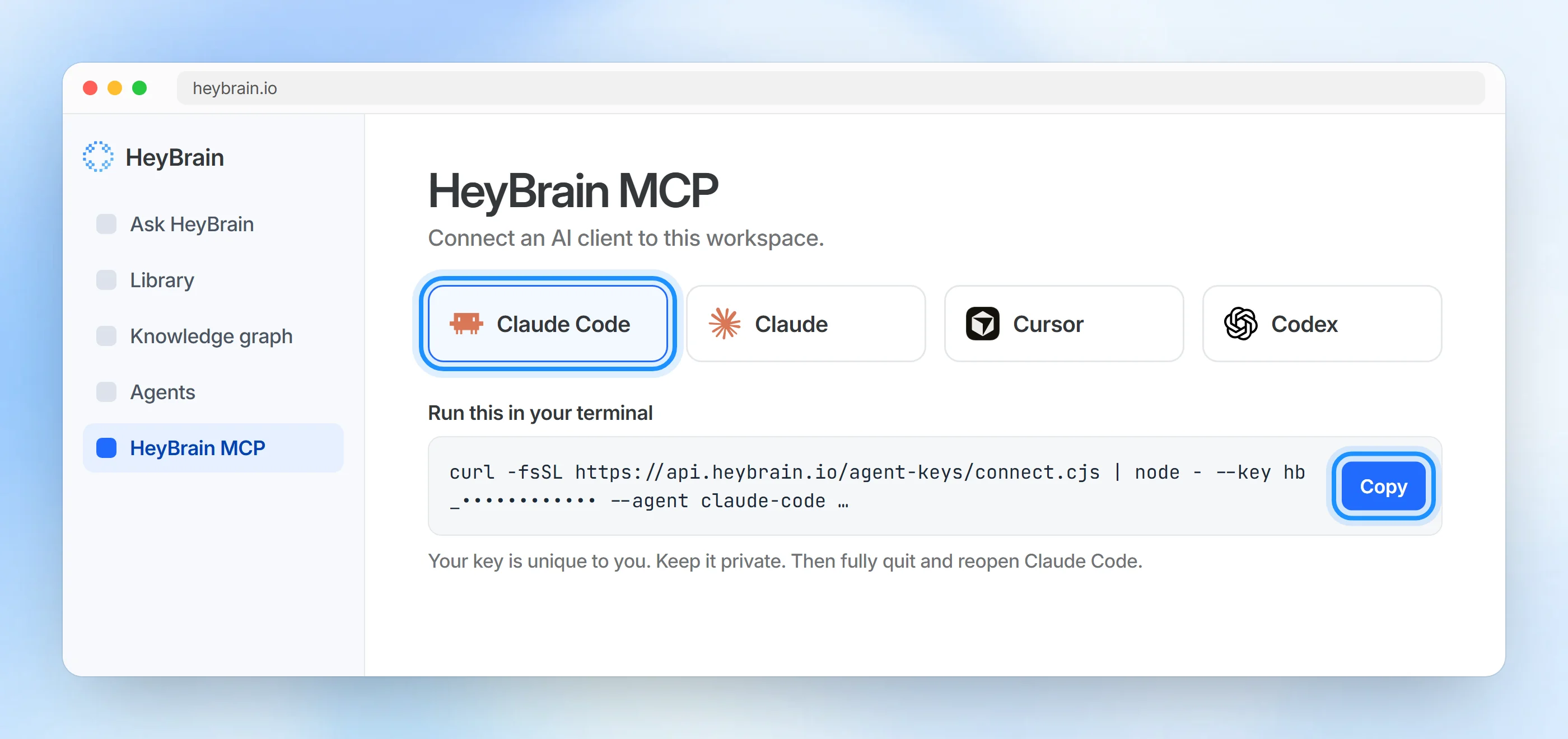
- In HeyBrain, open HeyBrain MCP, choose Claude Code and copy the command. It carries your own key, so keep it private.
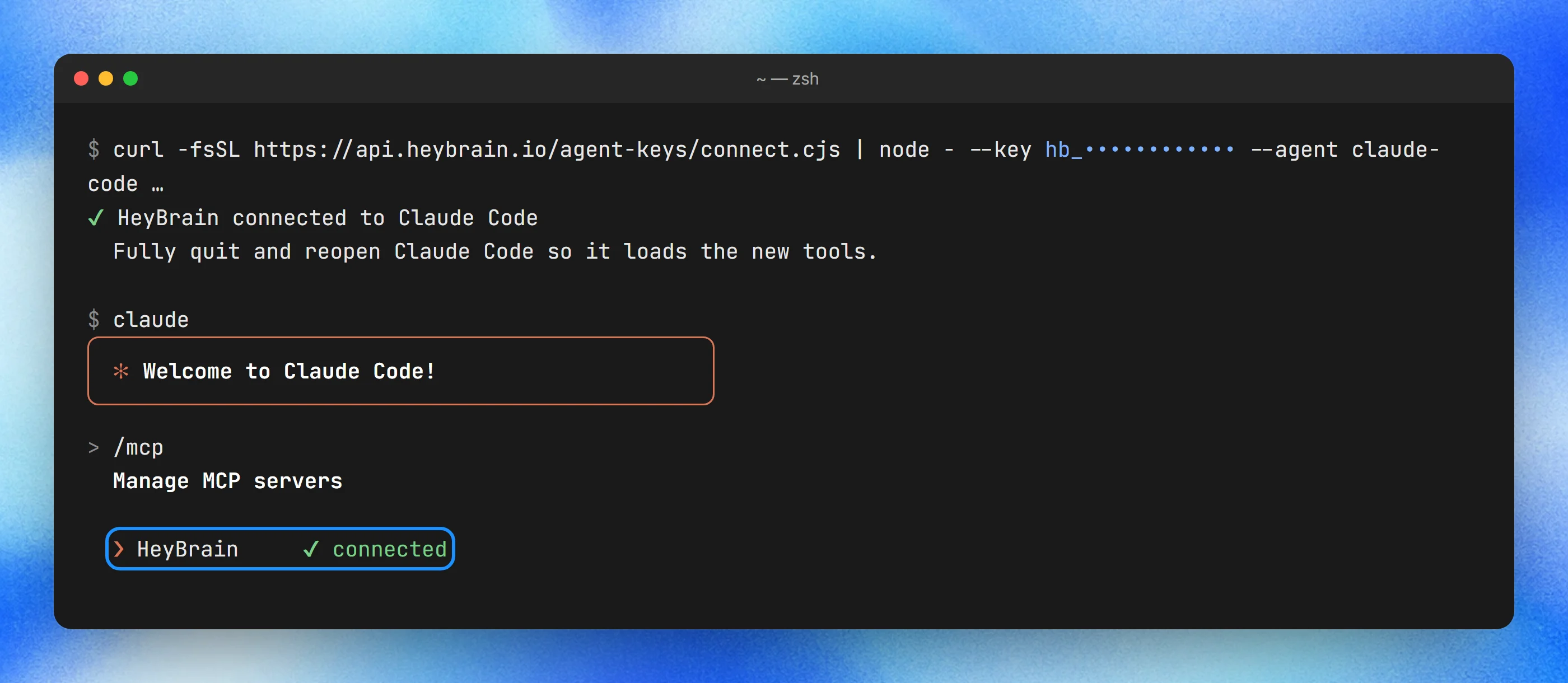
- Paste it into a terminal and run it. Then fully quit and reopen Claude Code.
- Type /mcp in Claude Code and check HeyBrain is listed as connected.
Check Claude can see the brain before you start a run:
Check the brain
Open in ClaudeUse HeyBrain to tell me what you know about my business. List the five most recent documents, and one decision or open question from each.
Then do this before any big run. Have Claude read HeyBrain once, write a short brief, and hand that brief to every agent.
Brief the team first
Open in ClaudeBefore you plan any workflow, use HeyBrain to read what we sell, who we sell to, our positioning, our brand voice and any decisions that affect [the job]. Write it up as agent-brief.md in this folder: one page, short bullet points, with the names of the documents you used. Then, for every workflow you run in this session, put the contents of agent-brief.md at the top of every agent's instructions, and tell each agent to flag anything about the business the brief doesn't cover instead of guessing.
Using the Claude app as well?
In HeyBrain, open HeyBrain MCP, choose Claude and copy your connection URL. It’s unique to your workspace, so keep it private.
In Claude, open Customize → Connectors, choose Add, then Add custom connector. Name it HeyBrain, paste the URL, click Continue, then Add. Click Connect, sign in to HeyBrain and click Allow, then switch HeyBrain on from the + menu in a chat. On Team and Enterprise plans, an Owner adds custom connectors for the organization.
Step 7: Prompts for big jobs
These are the shapes of job where a team beats one agent: lots of items, or findings that need checking. Each one assumes you’ve run the brief prompt above.
Audit everything we’ve published
Open in Claudeultracode: go through every blog post and landing page in [folder or sitemap]. One agent per page. Using agent-brief.md, flag anything that contradicts our current offer, pricing or positioning, and anything a customer would find confusing. Have a second agent verify each flag. Give me one ranked list with the page, the line and a suggested fix.
Research the competition
Open in Claudeultracode: research [competitor 1], [competitor 2] and [competitor 3]. Before you plan, use HeyBrain to check what we already know about each one and add it to the agents’ instructions. Read their websites, pricing pages and recent announcements in parallel. Cross-check every claim against at least two sources, drop anything you can’t confirm, and give me a comparison against our positioning with the sources listed.
Twenty angles, judged
Open in Claudeultracode: before you plan, pull our customer notes from HeyBrain. Then, using agent-brief.md and those notes, have 20 agents each write one ad or post angle for [offer], each from a different customer problem. Then have a panel of agents score every angle against our brand voice and what our customers actually say. Give me the top five with the reasoning and the notes they drew on.
Plan from several angles
Open in Claudeultracode: I need a plan for [the decision, for example our next launch]. Before you plan, use HeyBrain to read our goals, past launches and open questions, and give every agent what you found. Have several agents each draft a plan from a different angle (fastest, cheapest, lowest risk, biggest upside), then have another agent compare them and recommend one, with what we’d give up.
Step 8: Save the runs that work
When a run does exactly what you wanted, keep it. Next time it runs the same plan, without Claude working it out again.
- Type
/workflows, select the run and presss. - Pick where to save it:
.claude/workflows/in your project (shared with anyone who uses the repo) or~/.claude/workflows/(just you, every project). - Next time, type
/and the name you gave it. It shows up alongside the built-in commands.
A regular content audit is a good one to save like this. Refresh agent-brief.md from HeyBrain before each rerun, so the agents work from whatever has changed in your Drive and Notion since the last time.
When not to use ultracode
A team of agents isn’t always better. I reach for it when the job is wide (lots of items) or needs checking. For everything else, one agent is cheaper and often better.
| Use ultracode for | Skip it for |
|---|---|
| Auditing lots of pages or files for the same problem | A small edit to one file |
| Research that needs sources checked against each other | A quick question you could answer in one chat |
| The same change across many items | Work that needs one careful line of reasoning |
| A big decision you want drafted from several angles | Anything where you want to approve each step as it happens |
One more limit worth knowing: a workflow can’t stop and ask you questions halfway through. If you want to sign off between stages, run each stage as its own workflow.
Questions people ask
Is there a /ultracode command?
No. Put the word ultracode in a prompt to run that one task as a workflow, or type /effort ultracode to switch it on for the session. /effort ultracode off turns it off.
Which plan do I need?
Workflows are on every paid Claude plan and with an API key. On Pro, switch them on first from the Dynamic workflows row in /config.
Will 100 agents eat my usage?
They can. Every agent makes its own requests. Start with a small slice of the job, watch token use in /workflows, and stop the run if it’s heading the wrong way. On a subscription, a run that hits your limit can pause and carry on after it resets.
Do the agents really talk to each other?
In a workflow, the script passes results between agents and can have them check each other’s findings. Agents that message each other directly are a separate feature called agent teams, which is experimental and off by default.
Do I need HeyBrain for this?
No. Steps 1 to 5 work on their own. HeyBrain is how I make sure every agent’s brief comes from my Google Drive and Notion, instead of guesses.
Is my data used to train models?
No. HeyBrain doesn’t train any model on the content you connect.

