
The four AI tools I use to stay organized
Wispr Flow for my thoughts, Granola for meetings, Notion plus Claude Code for the work, and HeyBrain as the memory that ties them together. How I set up each one, with the prompts.
On this page
What this is
In the video I said the goal isn’t to remember more. It’s to have systems that hold things for you, so your head stays clear. These are the four AI tools I use to do that, and this guide is how I set each one up.
Wispr Flow gets thoughts out of my head. Granola takes my meeting notes. Notion holds the work, and Claude Code helps get it done. HeyBrain is the memory underneath, the one place Claude can look up what we decided and where things live. It has a 14-day free trial. Full disclosure: I co-founded it.
The four tools
| Area | Tool | What it does for me |
|---|---|---|
| Your thoughts | Wispr Flow | I hold a key, talk, and clean text appears where I’m typing |
| Meetings | Granola | Transcribes calls in the background and gives me notes and action items |
| Your workflow | Notion + Claude Code | Notion holds my tasks; Claude Code reads them and helps do them |
| Memory | HeyBrain | Turns my Google Drive and Notion into one brain that Claude can search |
Step 1: Your thoughts: Wispr Flow
Most of my ideas used to die between my head and the keyboard. Wispr Flow fixes that. You hold a key and talk, and when you let go it types what you said into whatever app you’re in, with the filler words and false starts cleaned up. It has a free plan with a weekly word limit, on Mac, Windows, iPhone and Android.
Set it up
- Download Wispr Flow from wisprflow.ai and sign in.
- Give it the permissions it asks for, including the microphone.
- Click into any text box, hold Fn on a Mac (Ctrl + Win on Windows), talk, and let go.
- If you want a different key, change it in Wispr Flow’s settings under Shortcuts.
My habit: the morning brain dump
I keep one Notion page called Inbox. Each morning I open it, hold the key and say everything that’s on my mind: ideas, worries, things I promised people. No sorting, no formatting. It all gets sorted later (that’s tool 3).
Step 2: Meetings: Granola
I can’t focus on a call if I’m busy typing notes. Granola transcribes from my computer’s audio in the background, so no bot joins the call. It works with Zoom, Google Meet, Teams and the rest. I jot a few words if I want to, and after the call it turns them into clean notes with action items. It has a free plan with limited meeting history.
Set it up
- Download Granola from granola.ai for Mac or Windows.
- Sign in with the Google or Microsoft account that has your work calendar and allow calendar access, so your meetings show up in Granola.
- When a call starts, open the meeting in Granola. Type a few notes if you like, or none at all.
- After the call, let Granola write up the notes, then check the action items.
My habit: action items out, every call
Notes sitting in Granola don’t get anything done. Straight after each call, I ask Granola’s chat for the action items in a form I can paste into my Notion task list:
Action items from this call
Open in ClaudeList every action item from this meeting as a checklist. For each one: the task, who owns it, and the due date if we said one. Put mine first. Keep each line short enough to paste into my task list.
Can Granola send notes to Notion?
Yes, on Granola’s paid plans. In Granola, open Settings → Connectors, click Connect Notion and approve it in your browser. Then on any note, open the ⋯ menu and choose Save to Notion.
Notes go into a database Granola creates in your Notion, one note at a time. There’s no automatic sync built in; Granola points you to its Zapier integration for that.
On the free plan, copy the notes and paste them into a Notion page or Google Doc. Either way, once they’re in Notion or Drive, HeyBrain can read them.
Step 3: Your workflow: Notion plus Claude Code
Notion is where I keep everything I need to do: my job, my projects, my side projects. It’s the easiest place I’ve found to keep it all, and it has a free plan. On its own, though, a task list is just a list. I connect it to Claude Code, so the tasks actually get worked on, not just written down.
Set up Notion
- Make a database called Tasks with these properties: Status (To do, Doing, Done), Project, Due and Priority.
- Keep your Inbox page from tool 1 next to it.
- Put every task in this one database, whatever area of life it belongs to. Use the Project property to tell them apart.
Connect Claude Code to Notion
- Install Claude Code with Anthropic’s setup guide. It needs a paid Claude plan or an Anthropic Console account; the free Claude plan doesn’t include it.
- Make a folder for your planning, open a terminal in it and add Notion’s official connector with the command below.
- Start Claude Code with
claude, type /mcp, choose Notion and sign in to approve access.
Add Notion to Claude Code
Open in Claudeclaude mcp add --transport http notion https://mcp.notion.com/mcp
My two prompts
First, sort the brain dump from tool 1 into real tasks:
Sort my Inbox
Open in ClaudeRead my Inbox page in Notion. Turn each idea, worry or promise into a task in my Tasks database, with a Project, a Priority and a Due date if I mentioned one. Merge duplicates. Show me the list before you add anything, and ask before deleting anything from the Inbox.
Then, plan the day and start on it:
Plan my day
Open in ClaudeRead my Tasks database in Notion. Pick the three tasks I should do today, based on priority and due dates, and tell me why in one line each. Then take the first one: if it’s something you can do from here (a draft, a plan, research, a document), do it and show me. Ask before you change anything in Notion.
Step 4: Memory: HeyBrain
This is the one I’d call the most important, because your AI is only as good as what it knows. What did we decide last week? Where’s that doc? What’s the plan for this launch? You need one place that holds the answers, and that Claude can search.
For me, that’s HeyBrain. It turns my Google Drive and Notion into one knowledge graph and connects it to Claude over MCP. When I ask something, Claude looks up the pieces that matter and pulls in only those, instead of re-reading everything. The same brain works in the Claude app, Claude Code, Cursor and Codex, and my team reads the same brain.

Set up HeyBrain
- Start your 14-day free trial and create your workspace.
- Connect Google Drive, Notion or both, and choose what HeyBrain can read. If you save Granola notes to Notion, include the database Granola created; it sits in your Notion Private pages, which you can pick when you connect.
- Let it finish reading. It keeps reading your docs as they change.
Connect Claude Code
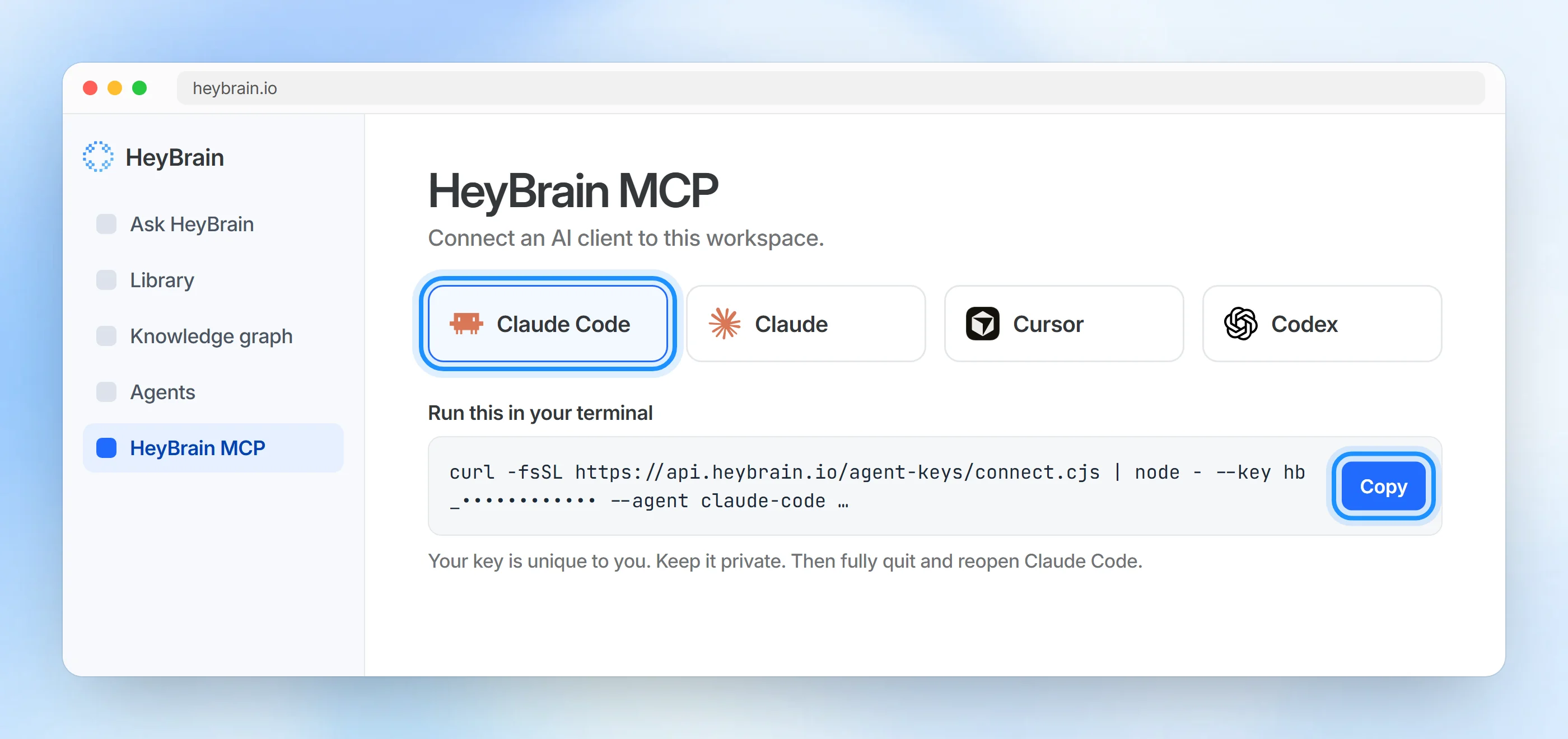
- In HeyBrain, open HeyBrain MCP, choose Claude Code and copy the command. It carries your own key, so keep it private.
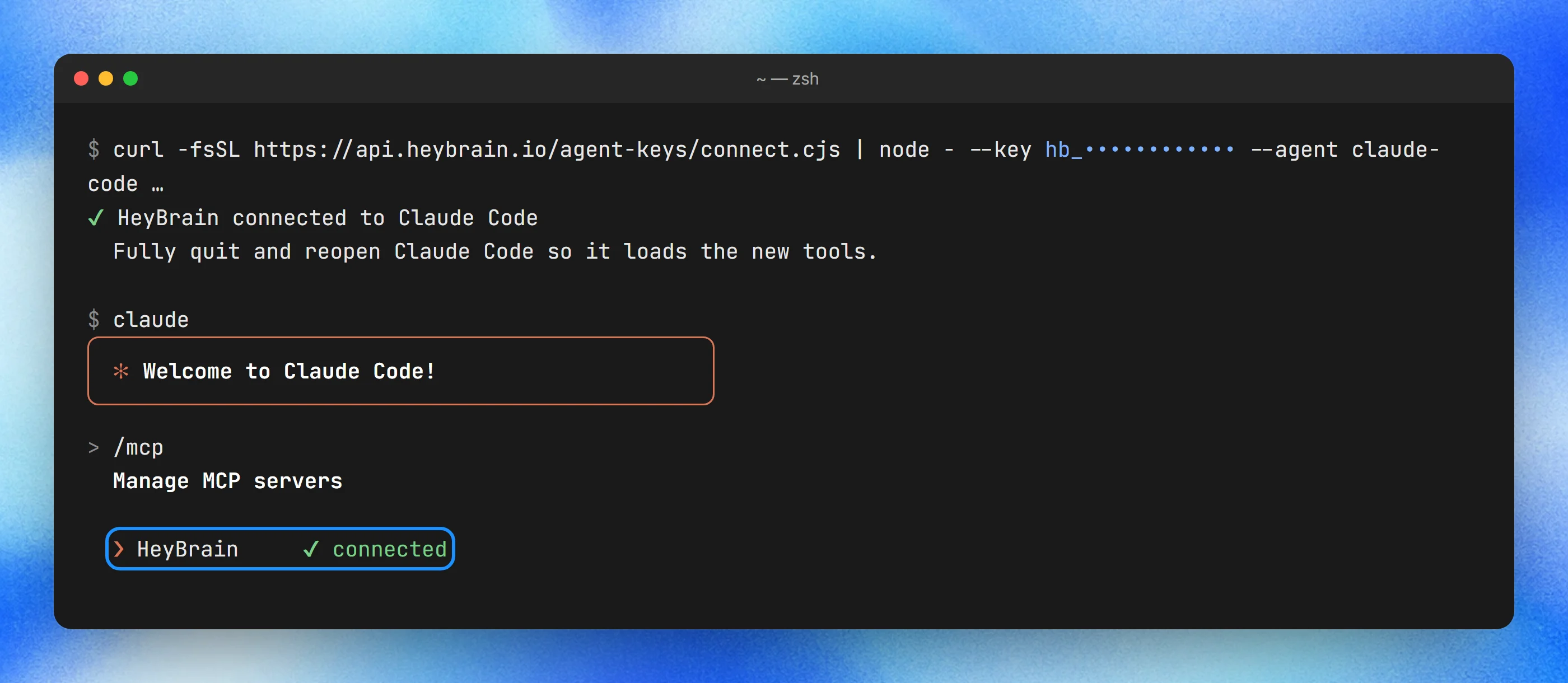
- Paste it into your terminal and run it. Then fully quit and reopen Claude Code.
- Type /mcp in Claude Code. You should see HeyBrain in the list, marked as connected.
Using the Claude app instead?
In HeyBrain, open HeyBrain MCP, choose Claude and copy your connection URL. It’s unique to your workspace, so keep it private.
In Claude, open Customize → Connectors, click + Add, then Add custom connector. Name it HeyBrain, paste the URL, click through the prompts and click Add. Sign in to HeyBrain when it asks and click Allow.
In a new chat, click the + and switch HeyBrain on.
Ask it the questions from the video
What did we decide?
Open in ClaudeUse HeyBrain to find what we decided recently about [topic]. Check my meeting notes and docs, quote the decision, and name the documents you used.
Where’s that doc?
Open in ClaudeUse HeyBrain to find the doc about [what you remember about it]. Give me the title, where it lives, and a two-line summary so I know it’s the right one.
What’s the plan?
Open in ClaudeUse HeyBrain to pull together the current plan for [launch or project]: the goal, the dates, who owns what, and anything still open. Flag anything in my notes that contradicts the plan.
How the four fit together
Each tool does one job. What makes it a system is that everything ends up in the same two places, Notion and Google Drive, where HeyBrain can read it.
| Tool | Its job | Where its output lands | How Claude sees it |
|---|---|---|---|
| Wispr Flow | Get thoughts out fast | Your Inbox page in Notion, or a Google Doc | Through HeyBrain |
| Granola | Notes and action items from calls | Granola, then Notion (Save to Notion) or a Drive doc | Through HeyBrain, once saved |
| Notion | Hold every task and project | Your Tasks database | The Notion connector, and HeyBrain |
| Claude Code | Sort, plan and do the work | Drafts, docs and updated tasks | It’s the one doing the reading |
| HeyBrain | Remember all of it | Reads your Drive and Notion as they change | Over the HeyBrain MCP |
Why the memory goes last
My morning, start to finish
My daily plan
Open in ClaudeRead my Tasks database in Notion and pick the three things I should do today. For each one, use HeyBrain to find the context: the related docs, meeting notes and decisions. Write it up as a short daily plan with links to the sources. Then ask me which one to start on.
Questions people ask
Do I need all four tools?
No. Each one works on its own. Start with the area that feels messiest. The memory gets more useful as the other three put more into Drive and Notion.
What does it cost?
Wispr Flow, Granola and Notion each have a free plan. Claude Code needs a paid Claude plan. HeyBrain has a 14-day free trial with a card required, then a paid plan. See pricing.
Does HeyBrain read Granola or Wispr Flow directly?
No. HeyBrain reads Google Drive and Notion. Anything you dictate into a Notion page or Google Doc, and any Granola notes you save there, become part of your HeyBrain. More sources are on the way.
Can Granola notes go to Notion automatically?
Granola’s built-in Notion option sends one note at a time, on its paid plans. For automatic sending, Granola points to its Zapier integration.
Does HeyBrain work with ChatGPT?
Today HeyBrain connects to Claude, Claude Code, Cursor and Codex. This guide is written for Claude.
Is my data used to train models?
No. HeyBrain doesn’t train any model on the content you connect.

