
To upload documents to an AI knowledge base in Brain, open Library in the intended workspace, select Upload files, choose your document, review the queue and add it. Open the resulting file to check its text and displayed access. Then ask a specific question and compare the answer with its source.
At a glance
- Check the workspace before adding company knowledge.
- Start with a short, authorized document containing a fact you can verify.
- Review the queued filename and the department or access controls where shown.
- Inspect the uploaded text and test it with a cited answer.
Before you start
- A Brain account with access to the intended workspace.
- A document you are authorized to add. For your first test, use fictional or non-sensitive content.
- This walkthrough used a 938-byte Markdown file about the fictional Orion project.
Upload and inspect your first document
Measured walkthrough:
1. Open Library in the intended workspace
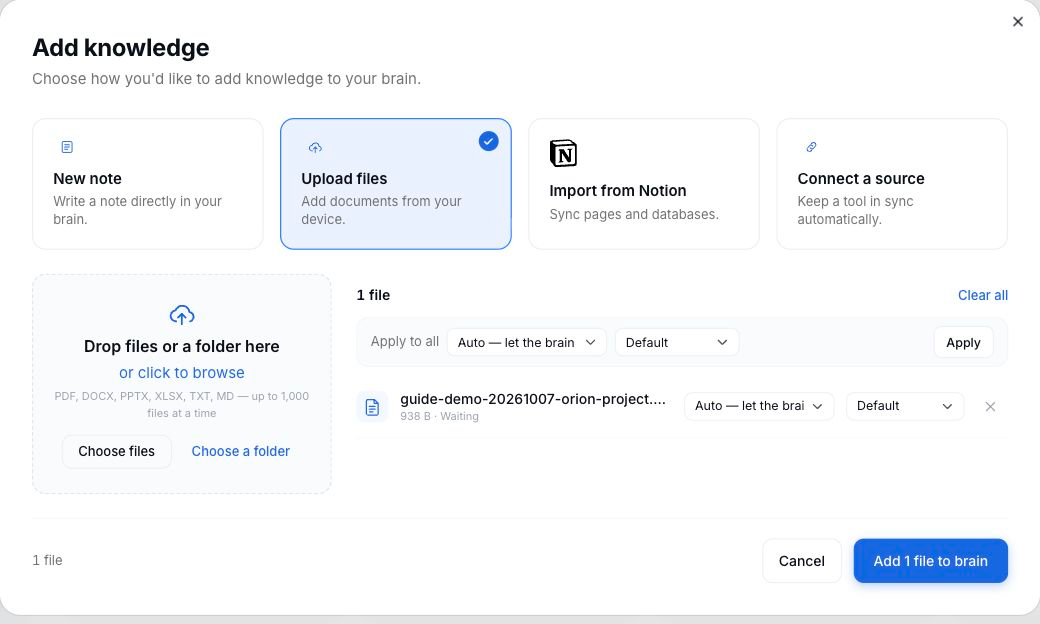
Check the workspace selector, open Library, then select Upload files. The Add knowledge dialog opens with the file upload controls.

2. Choose and add the file
Select Choose files, choose your document, and review the queued filename. Check the department and access controls where shown; personal brains may not display sharing controls. The demonstrated file appeared as Waiting. Select Add 1 file to brain once when the queue is correct. With multiple selected files, the button displays their count.
3. Inspect the resulting document
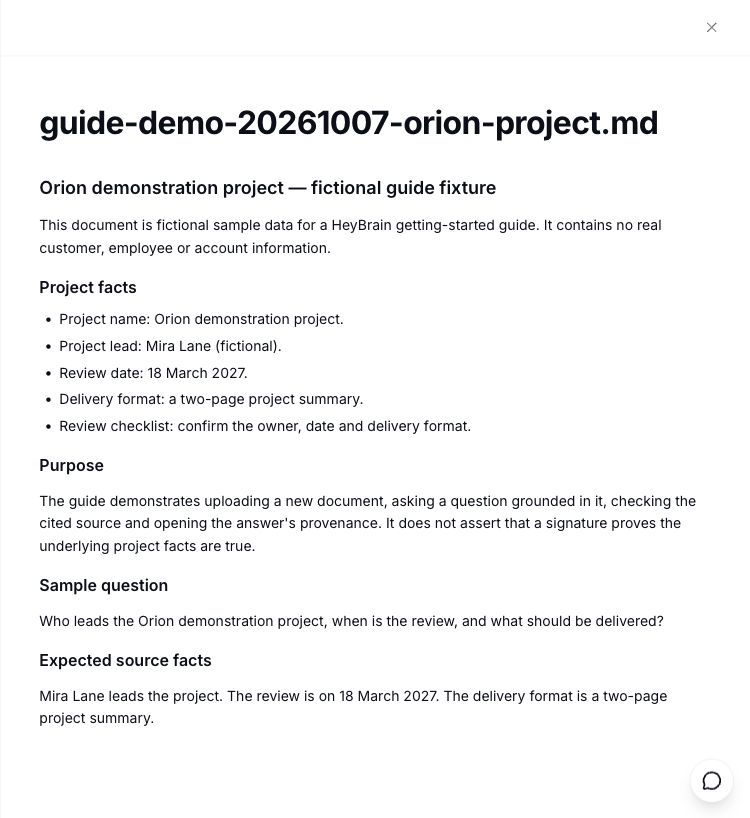
Return to Library, locate the file and inspect its status and displayed access. The demonstration showed Classification complete and This workspace. Open the file and select View document to compare its title and text with your original.
How long does the first upload take?
The demonstrated upload dialog to document view took 43.151 seconds, rounded to 44 seconds above.
This measured example includes agent interactions and observation. It is not a processing-time promise; document size, format and current conditions can change the result.
Which file types can I choose?
The observed picker lists PDF, DOCX, PPTX, XLSX, TXT and MD, with up to 1,000 files at a time.
This walkthrough tested one MD file. Check each actual result rather than assuming every listed format, file size or batch count has been verified. No file-size limit was established by this demonstration.
How do I check the document’s access?
Inspect the access displayed for the document you added. The fictional Orion file showed This workspace.
Keep the document and your question in the intended workspace. For background, read permission-aware retrieval. Checking this file does not establish another workspace’s sharing rules.
Personal brains may not display an Access selector in the upload queue. Follow the controls shown for your selected brain; this example used a team workspace.
Should I upload a file or connect a source?
Use Upload files for a document you control. Check Connect source for current availability before planning a sync.
All ten source connectors displayed Coming soon when this walkthrough was prepared. The connector guide will follow when a connector is live. Export only content you are authorized to add; uploading an export does not set up automatic synchronization.
How do I know the knowledge is useful?
Ask about a fact in the document, then compare the answer with the original.
In the Orion demonstration, Brain returned the coordinator, review date and deliverable with one source. Continue with asking your first question. For the broader idea, see what an AI brain is.
What should I check if upload or retrieval fails?
Check the selected workspace, the filename and the actual upload result before submitting again.
If the file is missing, inspect Library and your workspace first. If a format is rejected, follow the displayed error. If an answer misses a fact, open the document and ask a narrower question. A successful upload alone does not prove that every passage was retrieved correctly.
Questions, answered
What should I upload to Brain first?
Start with a short document containing a fact you can check, such as a project coordinator and review date. Use fictional or non-sensitive content for your first test. Confirm the intended workspace, inspect the uploaded text and displayed access, then ask a specific question and compare its answer with the source.
Which file types does the upload picker list?
The observed picker lists PDF, DOCX, PPTX, XLSX, TXT and MD. The live walkthrough verified one Markdown file. Open your actual uploaded document and inspect its content before treating it as ready for questions. A listed format does not establish the parsing quality of every document in that format.
Is my upload private to the workspace?
The demonstrated Orion file displayed This workspace as its access. Inspect the access shown for each file and confirm the selected workspace before adding sensitive content. That observation does not prove another workspace’s sharing configuration or a connected source’s permission behavior. Check the settings that apply to your particular document.
How do I know Brain can answer from my document?
Ask for a precise fact in the uploaded document, request a citation and open the cited source. Compare names, dates and other details with the original text. The demonstration returned all three Orion facts with one source; your own check should establish whether the particular answer is supported.
Can I connect Google Drive instead?
Check Connect source for its current status. All ten source connectors, including Google Drive, displayed Coming soon during preparation of this walkthrough. You can export an authorized document and upload it through Library. That adds the chosen file; it does not create a live connection or guarantee automatic updates.
Your first document should now be visible in the intended workspace and readable in Library. Next, test a fact from it and inspect the answer’s source.